I’ve written before about how to automate Bing Rewards. But, at the end of the guide, I mentioned some possible ways to take Bing Rewards automation even further. Well, I finally figured it out, so here’s how to do it.
Even More Accounts
Since my first post about this, I’ve set up a few more Bing accounts, so now I have 5 accounts, which I hear is the maximum, but I’m unsure how they track that. IP address maybe? Or phone number? If you know, leave a comment.
Anyway, with 5 accounts, I’m able to earn rewards at a much faster pace, especially with some of these new automation tricks.
Browser Automation with iMacros

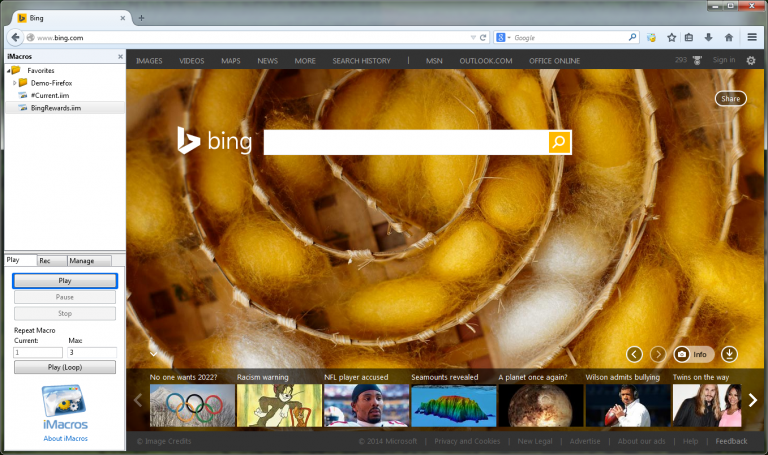
My favorite way to automate things that can be done in a browser is with the iMacros add-on for Firefox. I’m primarily a Chrome user, but iMacros from Chrome does not work very well at all compared to the Firefox version. Plus, it lets Firefox run the automated script without interfering with what I’m doing in Chrome.
So what I did was write an iMacros script that logs into each of my 5 Bing accounts one at a time and after each login, it goes to the PogoCheats page, clicks the search button, and waits for a specific number of seconds before going to log out of that Bing account and into the next, and so on.
Since it took me a while to fine tune this script until it runs smoothly, will you help me out and share this page with your friends? If you can, you’ll get to download my script in a text file below.
Thanks for sharing!
Here is my Bing Rewards iMacros Script. Use this with iMacros for Firefox
With that text file, this should be a simple copy and paste for the most part. Right-click on any *.iim file in the iMacros sidebar and click “Edit Macro”. Then copy and paste my script into the code editor and change each instance of account#@domain.com and password# with your Bing accounts emails and passwords.
Save it and click “Play” on the sidebar to watch your Firefox go through each one of your accounts racking up rewards points!
Note: Start off with Bing completely logged out because the script assumes it starts that way and tries to login. If you’re already logged in, you’ll get an error and the script will stop.
Automate Running the iMacros Daily with Windows Scheduled Tasks

- Open Windows’ Task Scheduler program and create a new basic task.
- For the trigger, set it daily at a certain time of your choosing.
- For the Action, use “Start a program”, browse for your firefox.exe file (example: “C:\Program Files (x86)\Mozilla Firefox\firefox.exe”) and then in the “Add arguments” box, enter “imacros://run/?m=BingRewards.iim”. Replace “BingRewards” with whatever name you used for your iMacros script. Or just rename your iMacros script to “BingRewards”.
- When you’re done, have your task selected and click “Run” in the right sidebar. It will run immediately and then repeat daily at your selected time.
Even More Automation for Mobile Searches

In my previous article, I also explained how to automate Bing Mobile searches to get an additional 10 points per day per account. But now I’ve taken that to the next level.
The app I recommended still doesn’t support multiple accounts, so for now, you really would need a separate mobile device for each Bing account you have.
What I’ve done is automated the launching of the “ReSearch with Bing” app with Tasker.
- In Tasker, create a new profile based on time and set what time you want it to start. You can uncheck the end time since that doesn’t matter.
- Then, create an action for that profile and choose App > Launch, and select the “ReSearch with Bing” app.
When you exit Tasker, it will run it once and then repeat daily at your specified time to start racking up even more points! Do this for each mobile device you have with each device logged into a separate account.
Note: In order for this to work, make sure you edit the settings in the ReSearch with Bing app and set it to start searching upon launching the app, and also set it to close the app when it’s done.
Sit Back and Let Your Bing Rewards Pile Up
The best thing about automation like this is that you can set it and forget it if you want to
However, if you want to squeeze out every last point, it would be a good idea to login to each account periodically to click on each of the 1 point offers in the notification drop down.
Tip: hold control and click each of them to open all of them very quickly without going back and forth.
So what do you think? Pretty cool huh? Let me know what you think in the comments.
Or do you have any questions or suggestions to improve this? Let me know in the comments.


[…] I've written a follow-up post about how to take Bing Rewards Automation to the next level using the above […]
I’m confused, where is the download link? I already shared this.
I would like to use the Automation with iMacros for Bing rewards, but I could not find the text file with the script you talked about. Is there a way you can share it?
There is a box that says “This content is locked”. If you use one of those share buttons, the download link will be revealed.
This is legit. Thank you for this. Do you know how to schedule a task in OSX? I recently switched from PC to Mac, so I’m still trying to get used to the OS.
Oh, good. Glad you figured it out. I was about to pull out the http://lmgtfy.com/ :-)
can you use the same phone number on all 5 accounts or how do you verify the accounts
I used the same number on all 5 of mine. I’m not sure what they use to verify since I haven’t tried to go over 5.
I have a desktop user agent switcher on my desktop firefox browser. Im trying to edit the script you provided for mobile for when i switch my desktop to mobile browser. the elements for loggin in are completely different. Do you have or could you work on a script that would work for said senario.
Does it work to just change your useragent? Does it register as a mobile search when you do that? I thought I tried that, but it didn’t work… as if Microsoft was using other methods to detect if it was mobile. Let me know if that works, and I would be interested in trying to set that up.
Yes, it works when you change the user agent. I’m using the Firefox add-on User Agent Switch (0.7.3). Just change to the iPhone 3.0 user agent, reload the Bing/Pogocheats pages and run the bot. Hope you are able to get it to work.
the mobile search points work when switching your browser. but you have to manually search, or run the pogocheats browser bot. But the script for the one in the link on this page wont work when the browser goes into mobile mode. The login and log out operations (locations) differ from the desktop version. Im still tweaking the script. Running into problems trying to get the browser to switch from desktop to mobile mode in order to be fully automated.
wow is this ever complex. there are automated apps out there that do all of this. i miss binggen. it not only did pc and mobile searches, but also picked up the extra bonus points that were offered daily.
Do you know if it can be more profitable if you use sandboxie?
Out of curiousity what do you mean by using Sandboxie to make this more profitable?
Well, sandboxie lets you launch multiple instances of same program and run them simultaneously. So basically you get n times average profit (theoretically) if you launch browser with script n times. Sadly, I doubt microsoft will be retarded enough not to notice some unusual activity, as using sandboxie yet doesn’t change your ip. Anyway, you can set up each sandbox’s browser to be connected to its own proxy server, as well as run all of browsers in private mode, so they wont track you.
First I want to say I realize how old of a post this is, but I would like to add something I think would be useful to add to your imacros script. Whenever i run the script which can take a bit of time I end up forgetting about it and not watching it. Maybe its just because of my recent bug testing with it, but every time i go look and see its done I think it might have had an error and just stopped. A addition I made is adding Prompt “Bing Rewards Automation Complete”. That way you have a MSG box that will be waiting on you to click OK whenever the Script finishes its code. It gives me that reassurance considering I’m trying to have everything automated and I wont be looking at the script running most of the time. Maybe someone could expand on this by making it send all this information to a log file so a user could check and look for errors?
Pogocheats now has an option to do the mobile search while running the extension in chrome (since march 28th, 2016.). any way to create a script in chrome instead of firefox? Opening pogocheats in firefox does not enable a mobile search option….
At the time of writing this post, the imacros Chrome extension did not work as well as the one for Firefox. But, it’s worth a shot to try it. Thanks for the tip.
That’s a great tip, Steve! Thanks for sharing!