One of the hardest parts about blogging is keeping consistent with your writing. Let’s face it, content creation is not as easy as it seems at first.
That’s when we turn to the plugins and tools that help make your job easier. Here are a few of the WordPress plugins and tools I use that help with quickly blogging about a source article, quickly accessing your drafts, and content calendar scheduling.
Let’s take a look…
New “Press This” Bookmarklet
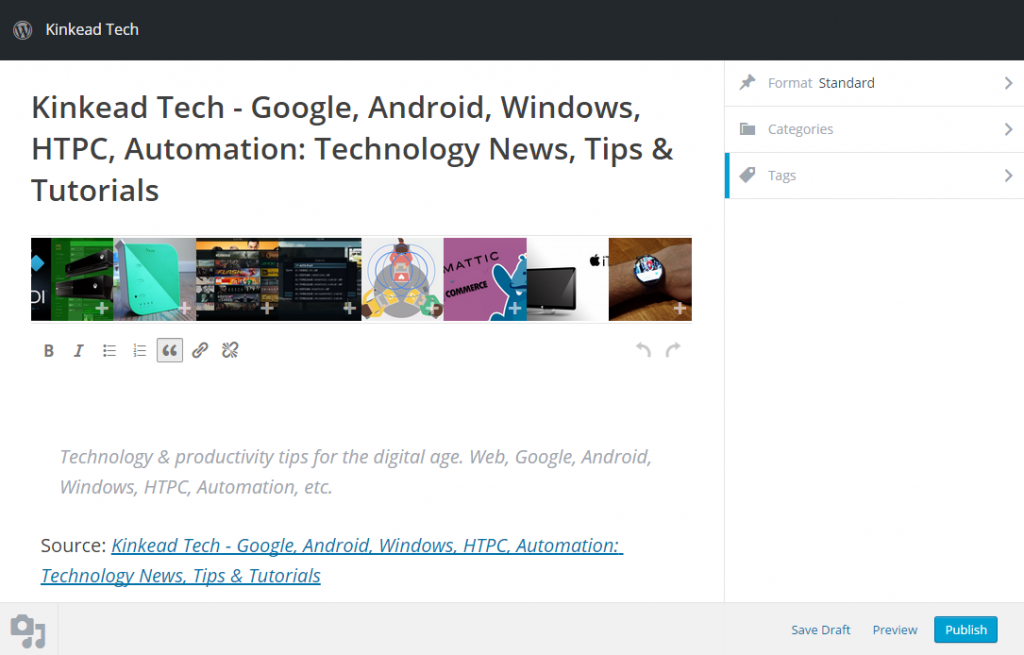
Starting in WordPress 4.2, the “Press This” Bookmarklet has been updated and is much more useful.
If you’re on a page that you would like to blog about, highlight a portion of the text that you want to quote, and then click “Press This”. It opens a pop-up that already has the selected text appearing in the content as a block quote followed by the attributing source link. It also lets you pick from some of the images that were on the page, and clicking on each of them will add them to your WordPress media library and insert them into the post draft.
It also has a sidebar that lets you choose post format, categories, and tags.
One feature that I wish it had was the ability to set a featured image. Currently, can’t do that. You just have to insert it into the content, save the draft, and then click “Standard Editor” to load that draft in the normal WordPress post editor view. There, you can fix any formatting issues, set the featured image, and do whatever else you need to do before publishing.
Keep in mind that it’s never a good idea to just quote another blog without adding any of your own original content to at least frame the quote with your own thoughts and personality.
To get the Press This bookmarklet button, go to Tools > Available Tools within your WordPress admin area.
Quick Drafts Access
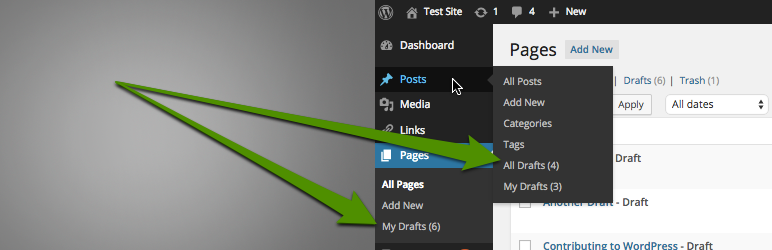
The Quick Drafts Access plugin for WordPress is a very simple plugin that just adds “My Drafts” into the sub-menu of Posts. It’s a bit faster to click that than it is to click to view all posts and then click the drafts filter.
WordPress Editorial Calendar

This editorial calendar plugin offers a great way to plan your content creation or content curation schedule. You can see what you’ve been posting on a calendar, and it shows you a list of unscheduled drafts on the right sidebar.
You can add drafts via modal pop-up by simply entering a title and a description (content), and you can drag and drop the drafts onto the calendar in order to schedule it. It’s such a handy way of just jotting down some ideas as they come to mind.
Don’t worry, it won’t actually “Schedule” the draft to be published on that date until you edit the draft and click the “Schedule” button.
Want More WordPress Tips?
Check out my other blog, WPForTheWin.com, for a bunch of awesome stuff to supercharge your WordPress site.


Hello Nathan,
Impressive!
I didn’t know about how useful “Press This” bookmarklet is. Simply great! Would definitely be using that one!
As for editorial calender, I mostly utilize my phone and diary to drop my posting plan, post ideas, etc. I gotta be checking into that plugin for sure.
Thanks again for putting up these three useful plugins! Happy to share it!
~ Adeel
Adeel, I’m glad you liked the post. Thanks for sharing. See you around!