The Internet can be a dangerous place for kids (or anyone else for that matter). Since I’m the father of 5 boys with the oldest one being 10 years old, parental controls for web filtering were becoming a priority to get setup.
The biggest dilemma was the fact that there are so many Internet connected devices in the home. They’re even running different operating systems. How could I possibly install some kind of web filtering on each device?
Well, I’m happy to share with you that there is a very easy and free way to get web content filtering parental controls for your home. It will work on every single device in your home with one simple 5-minute setup.
Just so that you understand what will be going on with this, here is an explanation on how all this technology works. That way, it’s not all just techie voodoo.
However, if you want to skip down to the instructions, go ahead.
Using OpenDNS for Parental Controls
The solution involves…
- Setting up a free personal account at opendns.com
- Configuring your web content filtering and security settings
- Logging into your router to set the IP addresses of OpenDNS in your DHCP settings.
What is DNS?
DNS stands for Domain Name Service. It is the system that the Internet uses to resolve domain names (like kinkeadtech.com) to IP addresses (like 37.60.255.34). DNS servers are everywhere and they all talk to each other to make sure everyone is kept up to date as to where domains are residing.
Well, as you can tell, without DNS, we can’t access any websites because we can’t memorize the IP address of every website we want to go to. That’s why every Internet service provider has their own DNS servers that they provide to their users so they can surf the web.
How Does OpenDNS Work?
OpenDNS is a special DNS server that allows for the use of lots of features like web content filtering, security filtering, and activity logging.
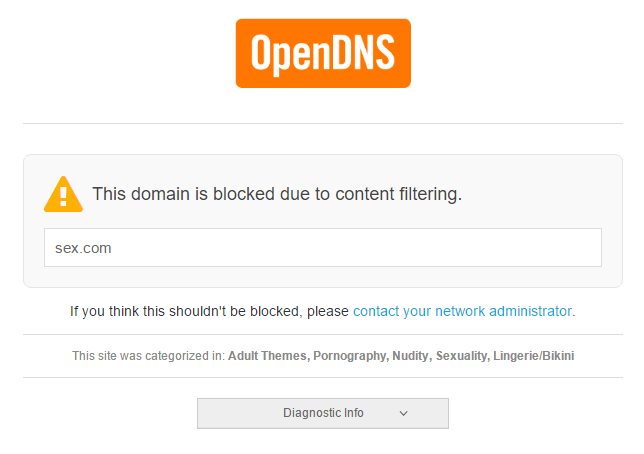
If your devices are configured to use OpenDNS’s DNS servers, and you have your home IP address set in your OpenDNS account, then OpenDNS will log all the websites that are accessed, and will block access to website that fall in a category that is not allowed according to your content filtering settings.
What is DHCP and How is it Involved?
DHCP stands for Dynamic Host Configuration Protocol. Basically, it’s a feature of your home’s router that assigns internal IP addresses to all of the devices in your home.
How is it involved? Well, it not only sets the internal IP addresses of your devices, but it also sets the DNS server settings for all of your devices. What that means is that you can set the OpenDNS IP addresses (208.67.222.222 and 208.67.220.220) once at your router, and those will propagate to all devices in your home. Your parental controls will then take effect on all Internet connected devices in your home.
Instructions for Setting up OpenDNS Web Content Filtering
Ok, with all that explanation out of the way, let’s get to the instructions.
- Login to your router’s admin panel and configure your DHCP settings. Set the DNS server to these IPs: 208.67.222.222 and 208.67.220.220

- Sign up for a free account at OpenDNS.com
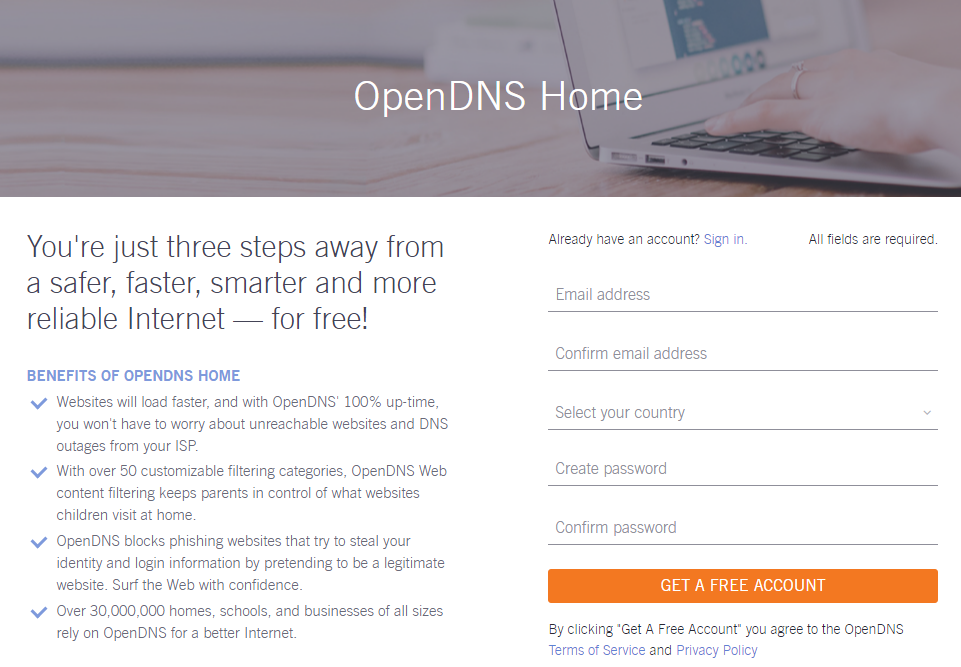
- Add your home network

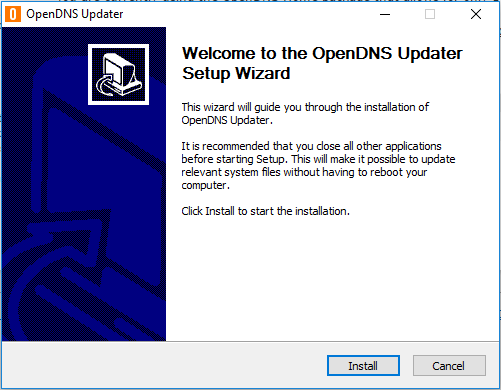
- Install the OpenDNS Updater on one of your computers to keep OpenDNS updated when your home’s public IP changes
- Configure your web content filtering settings
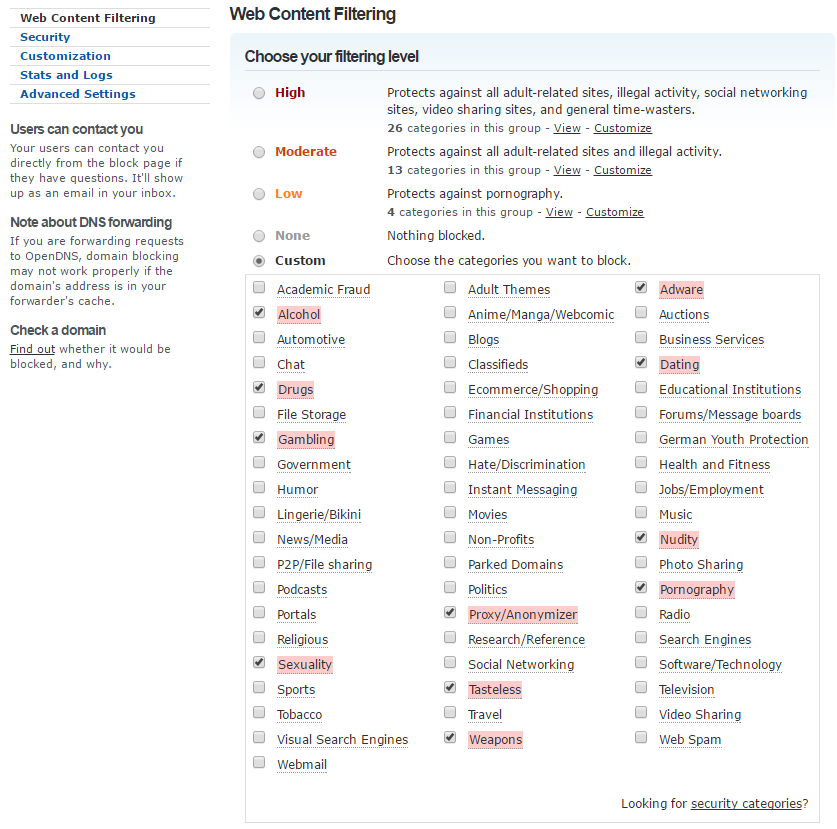
- All done! Now, as soon as your computer disconnects and reconnects, or when your DHCP lease expires, you can test it.
You may have to wait up to a week depending on your lease timeout settings. One fast way to test it is by opening the windows Command Prompt, and run “ipconfig /release” and then “ipconfig /renew”.
Share This with Your Friends
I hope this has been a helpful tutorial and that it helps protect lots of kids from being exposed to crud on the Internet.
More people really should know how easy this is to do, so please help spread the word by sharing this on Facebook. Do it for the kids!
Need Any Help?
If you have any questions or have troubles setting this up, please leave a comment below and I would love to help. Thanks!


